Make a trending edit
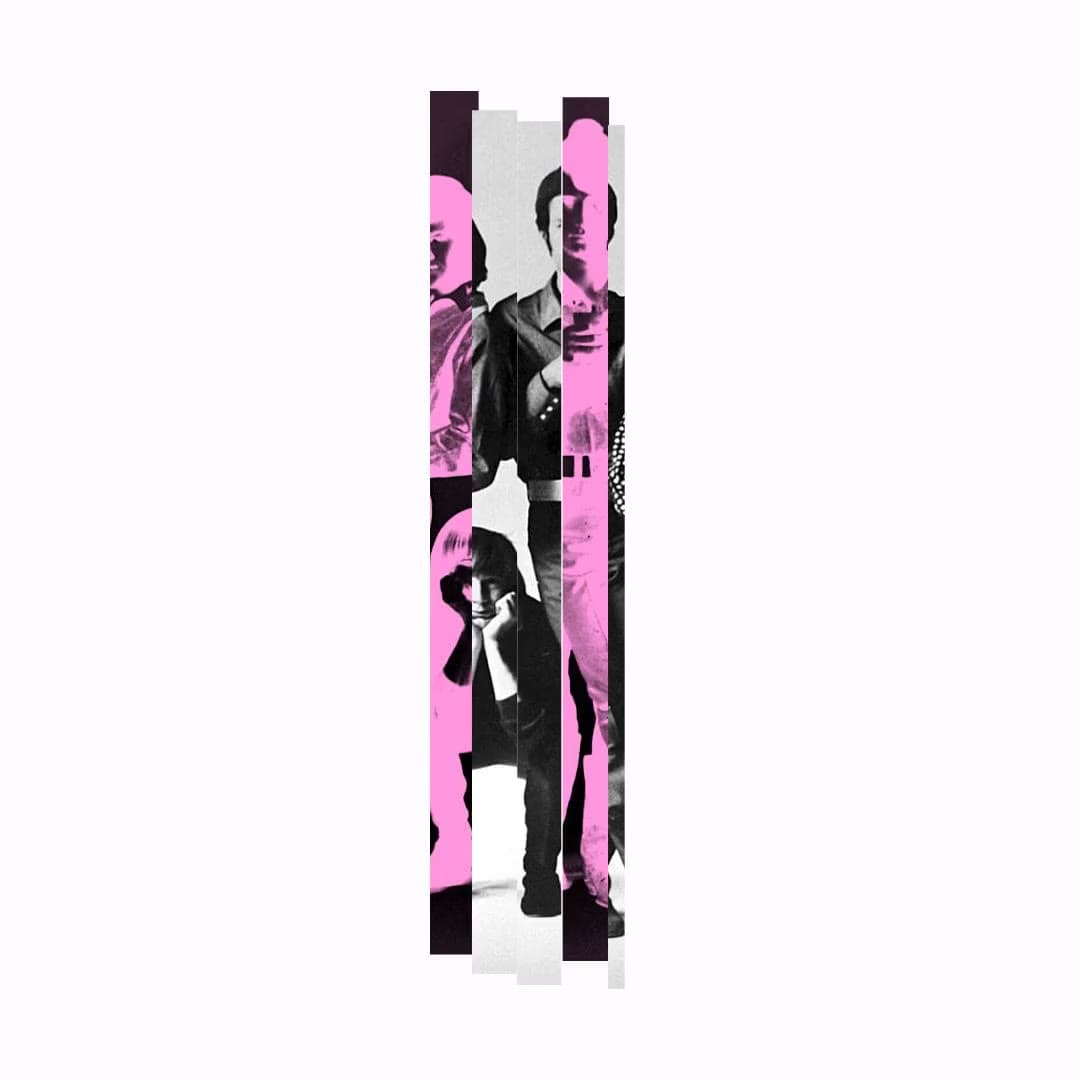
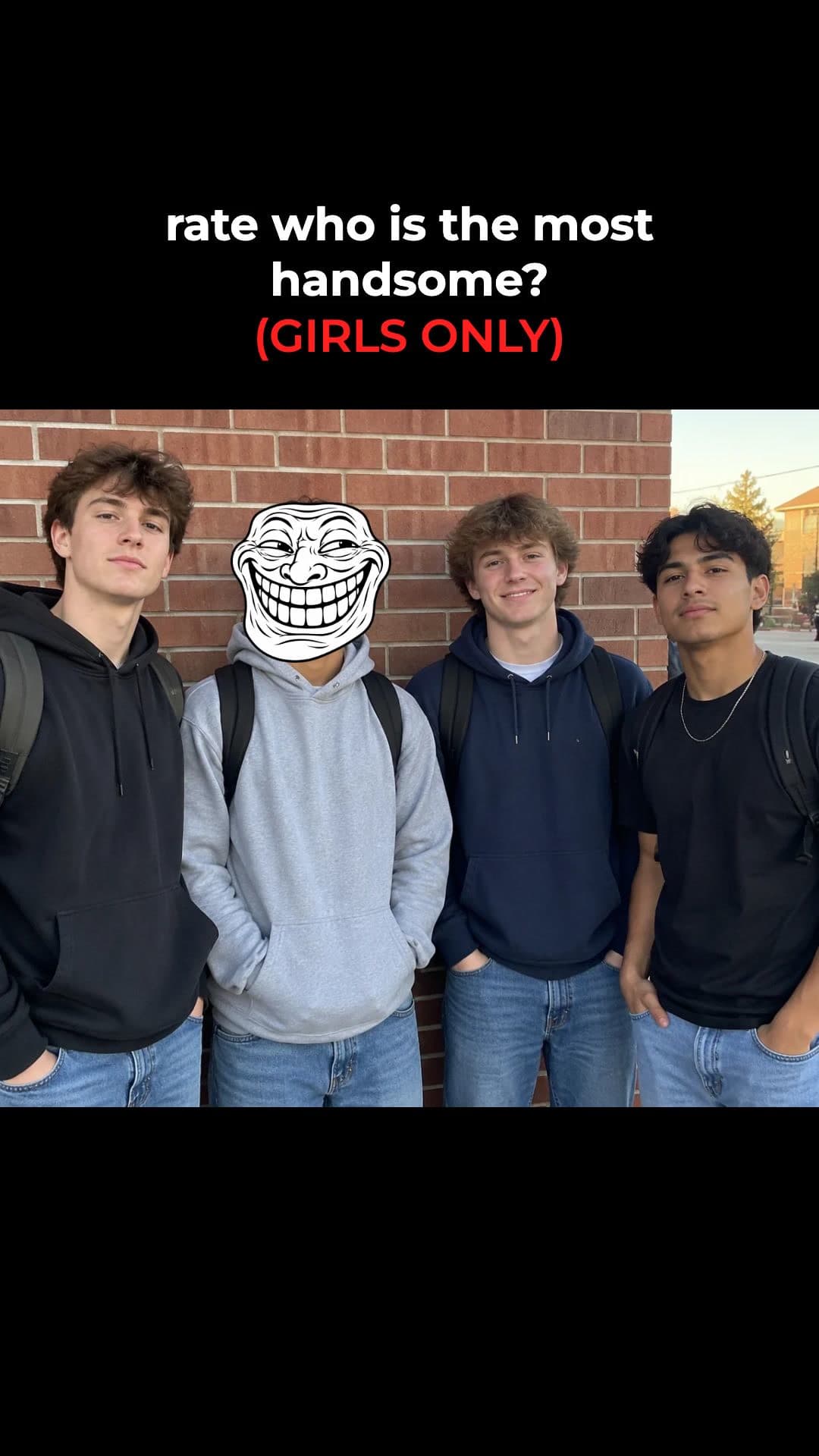
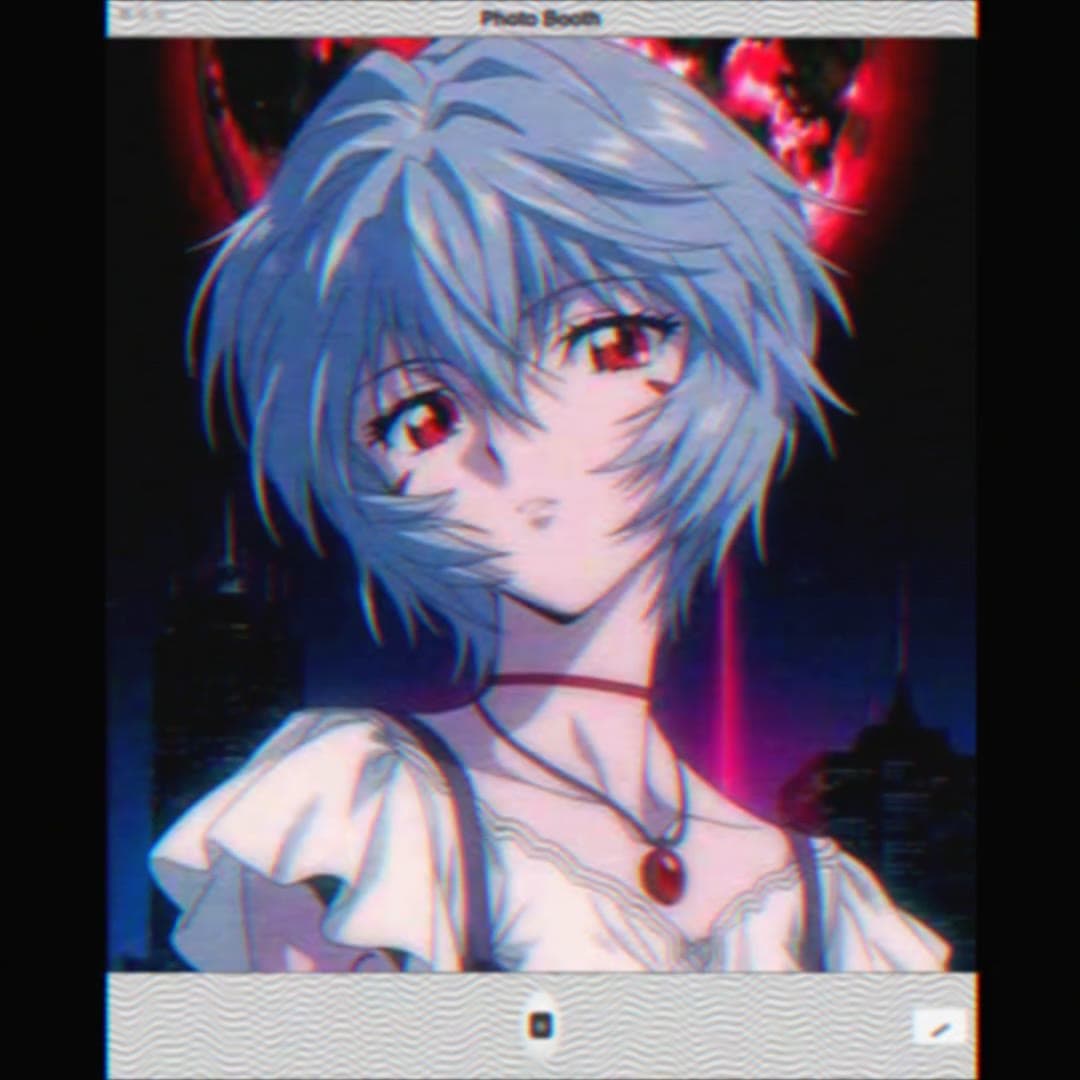
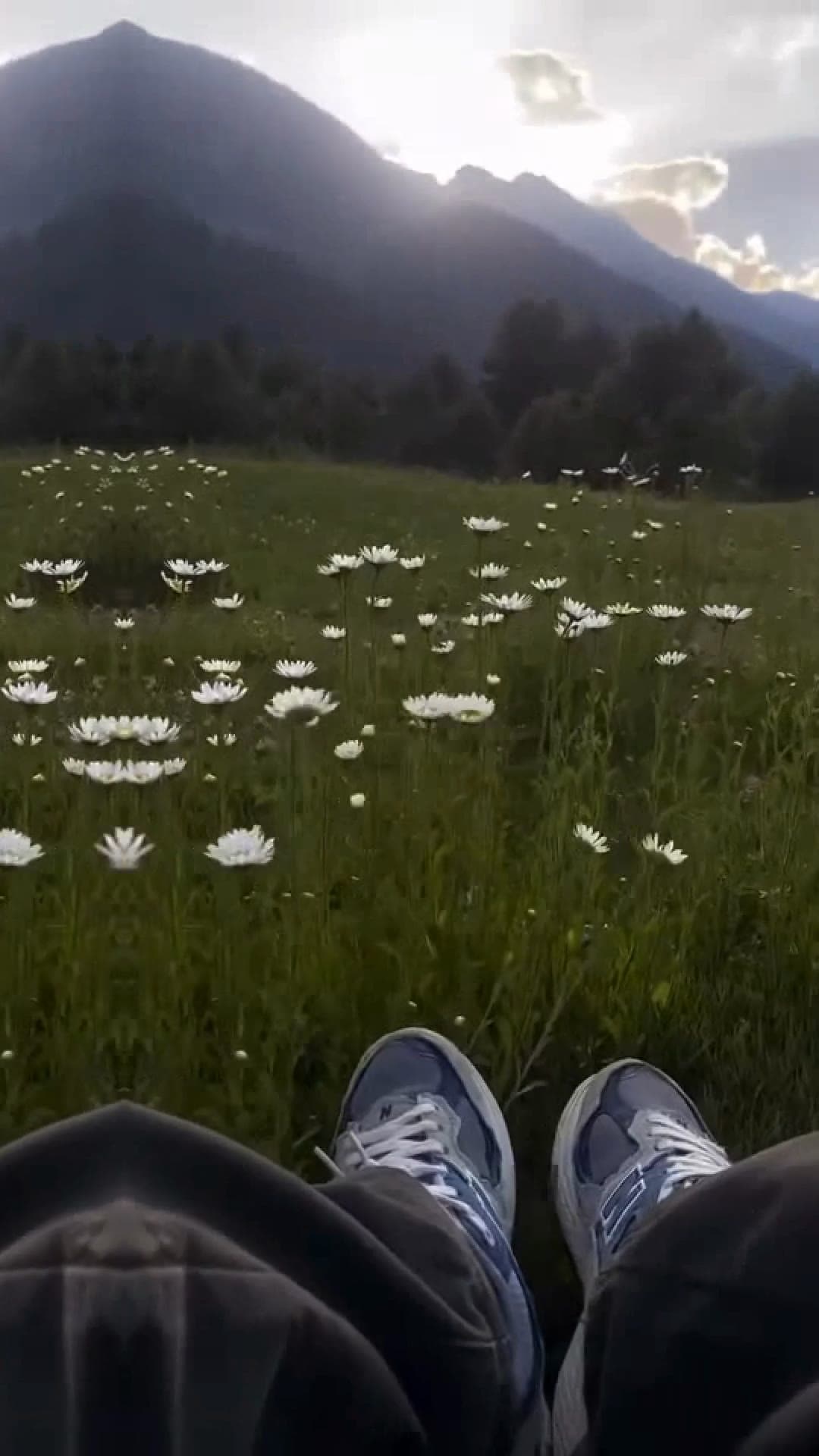





How to make a trending edit
- 1
Pick a template
Every template plays a real example of the trend, so you know what you'll get.
- 2
Add your clips and ask
Attach your photos or clips and say what you want. Waffle cuts the edit around them, on the beat.
- 3
Export and share
Download an MP4 and post it to TikTok, Reels or Shorts.
Questions
Do I need to download CapCut to use these templates?
No. Waffle runs in your phone or computer's browser. Sign in with Google or Apple, add your photos or clips, and Waffle makes the edit.
How is this different from a CapCut template?
A CapCut template has fixed slots, so your clips have to fit it. Waffle builds the edit around the photos and clips you add, and you can change anything by typing.
Can I try it for free?
Yes. You can start making videos for free.
What size are the videos?
Vertical 9:16 for TikTok, Instagram Reels and YouTube Shorts. You can also export square or 16:9. Every video downloads as an MP4.
Can I change the video after it's made?
Yes. Type what you want different, like "make it slower" or "swap the title", and Waffle updates the video.
Trending CapCut templates, made in your browser
Slow-motion and velocity templates
The slow-mo and velocity edits that slow down on the drop and speed up on the beat. Upload your clips and the speed changes line up with the song.
Photo templates and photo dumps
Turn a camera roll into a photo dump edit, a polaroid love story or a birthday countdown, without squeezing photos into fixed slots.
Create now: Pink Photo Fan EditLove, besties and birthday templates
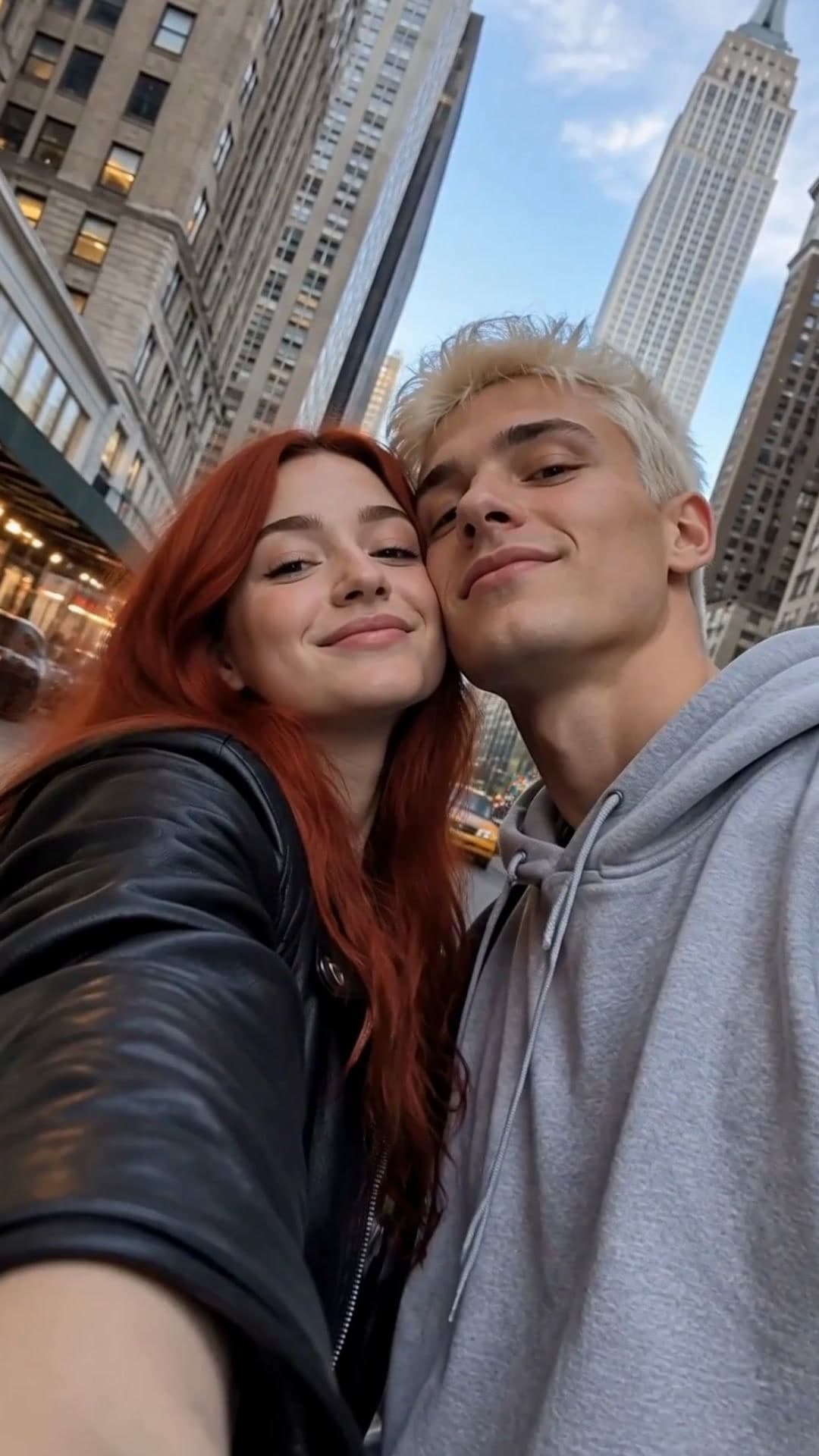
Couple edits, "me and my 3 best friends" and birthday surprises. Add the photos and their name, and post it.
Create now: Couple Selfie MontageCinematic and aesthetic templates
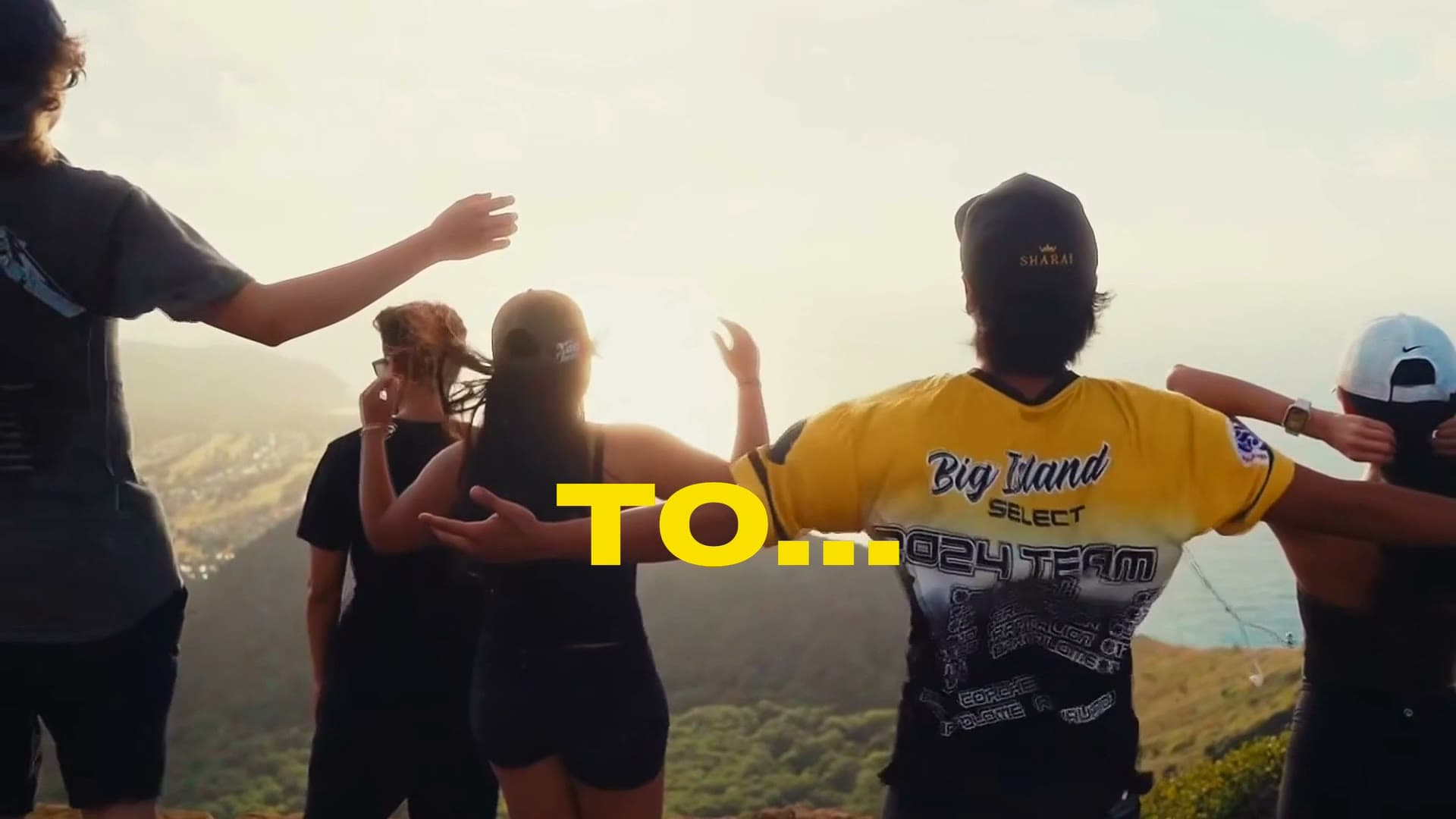
Film grain, black bars and one-word title drops for travel, city and summer recaps.
Create now: Cinematic Trip Recap Montage
CapCut is a trademark of its owner. Waffle is not affiliated with or endorsed by CapCut.